 Low Shipping
 Meesho Label crop
 Flipkart Label crop
 Amazon Label crop
 Myntra Label crop
 Snapdeal Label crop
 Jiomart Label crop
 Glowroad Label crop
 Limeroad Label crop
 Shop101 Label crop
 Shopdeck Label crop
 SIMSIM Label crop
 Citymall Label crop
 Amazon FBA Box Label crop
 Generate Amazon FBA sticker
 Merge PDF
 Split PDF
 Remove Pages
 Extract Pages
 PDF To Image
 PDF To Word
 PDF To Powerpoint
 PDF To Excel
 Rotate PDF
 Add Page Numbers to PDF
 Add WaterMark to PDF
 Protect PDFs
 Unlock PDFs
PDFCroppers Desktop App: Installation and Setup Guide
By Support Team | Published | Updated
This desktop application helps you manage your e-commerce label PDFs and view order summaries, making shipment and logistics easier.
1. Install the Setup
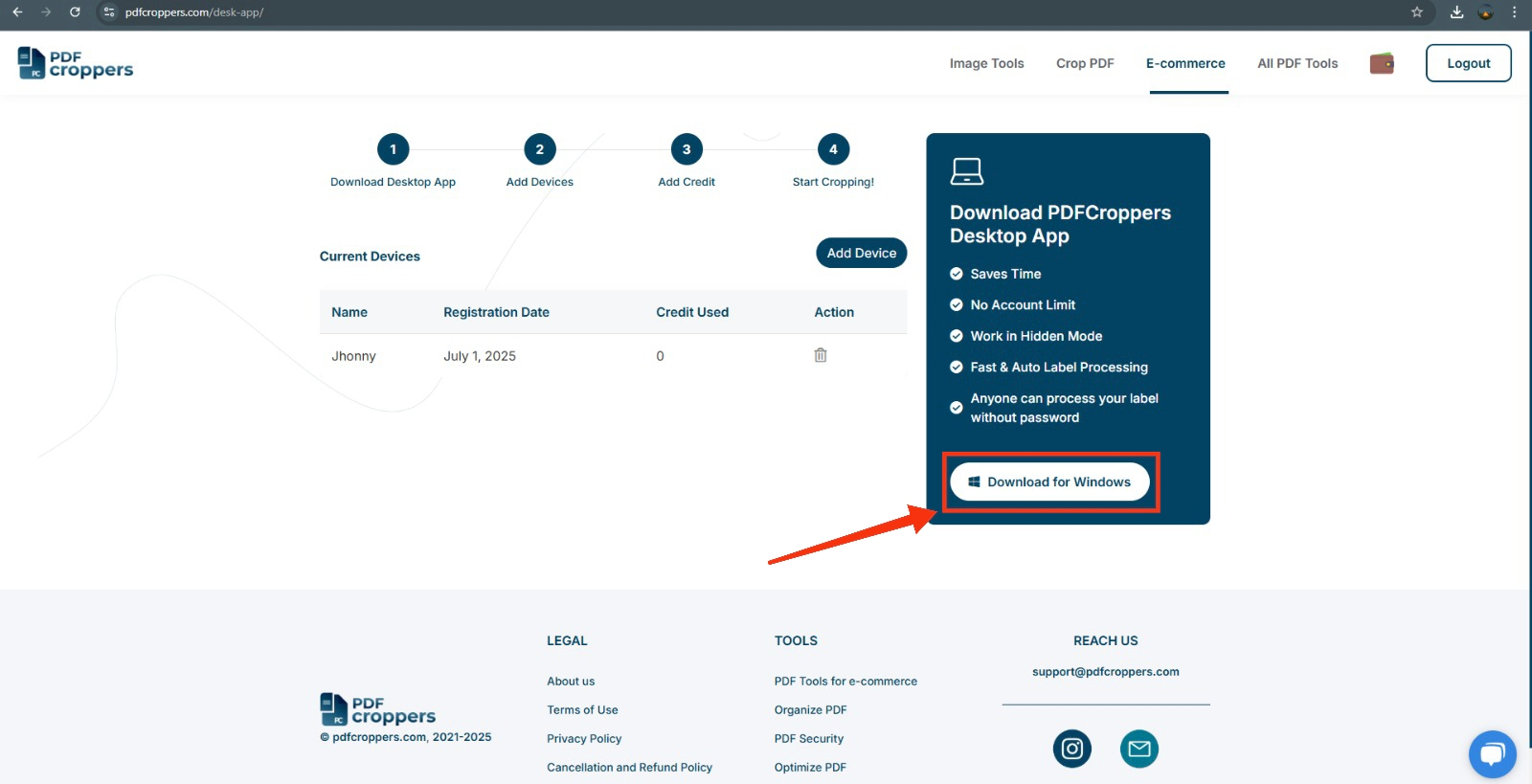
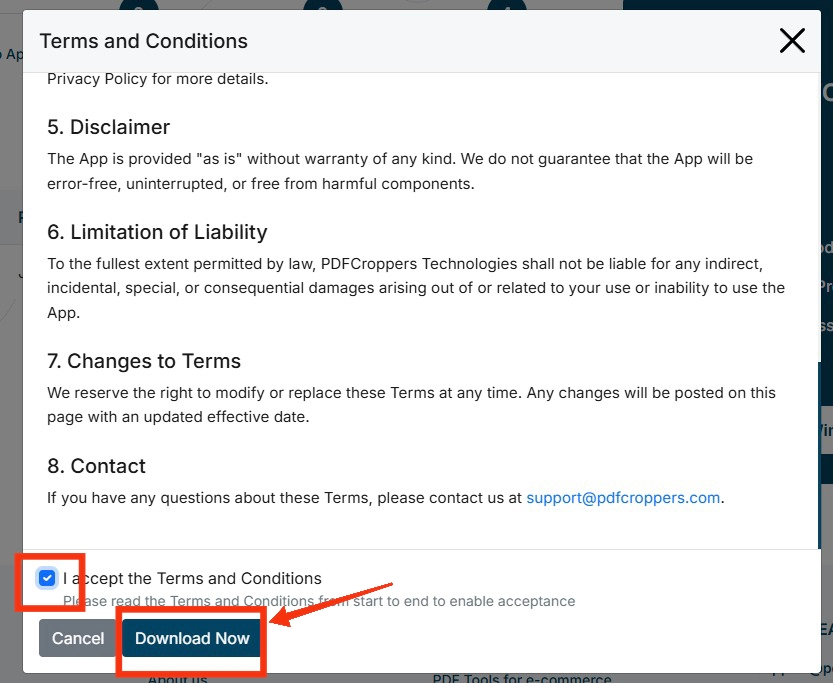
- Go to https://pdfcroppers.com/desk-app/ & Download the setup file as shown:
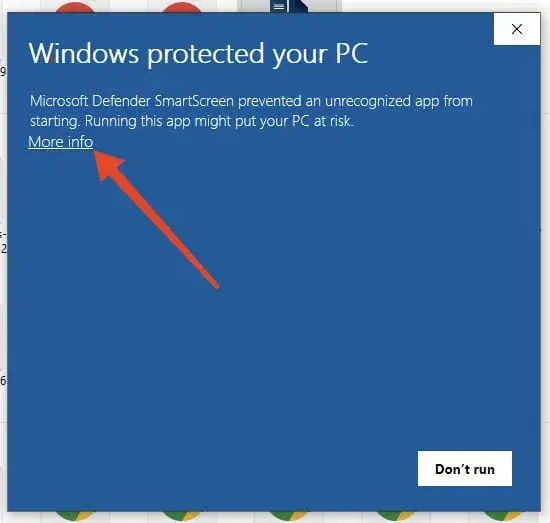
- After downloading, double-click the setup file to install the app. if you get warning as below then click more info as shown.
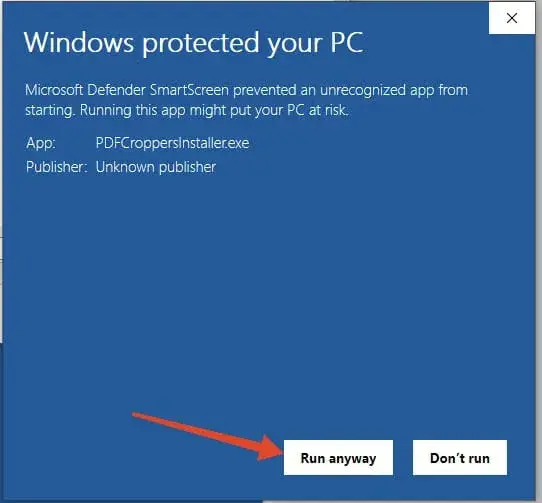
- Click run anyway as shown.
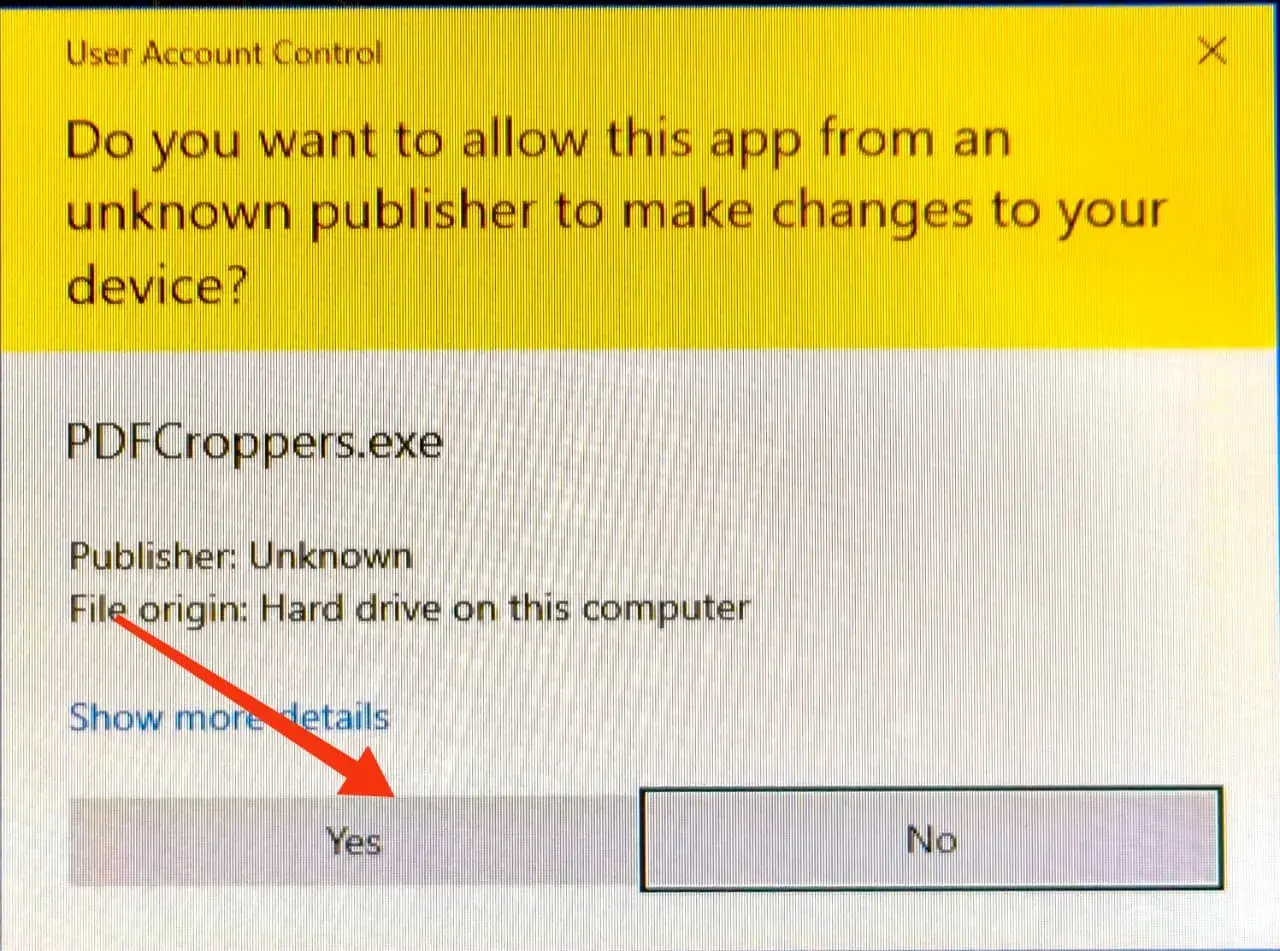
- After click yes as shown.
- After install app using installer.
2. Register Your Device
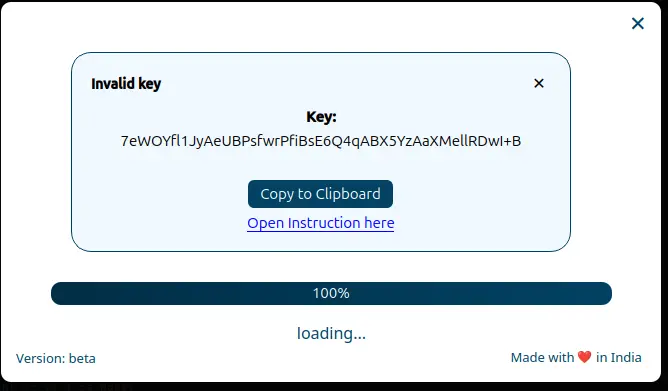
- After installation, open the app. You will see the following screen:
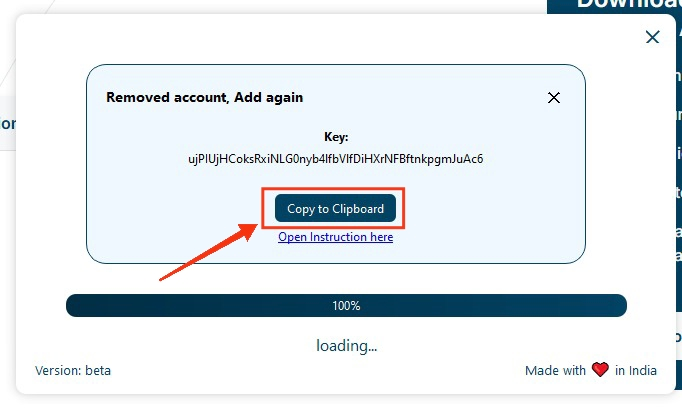
- Click the copy button to copy your device key:
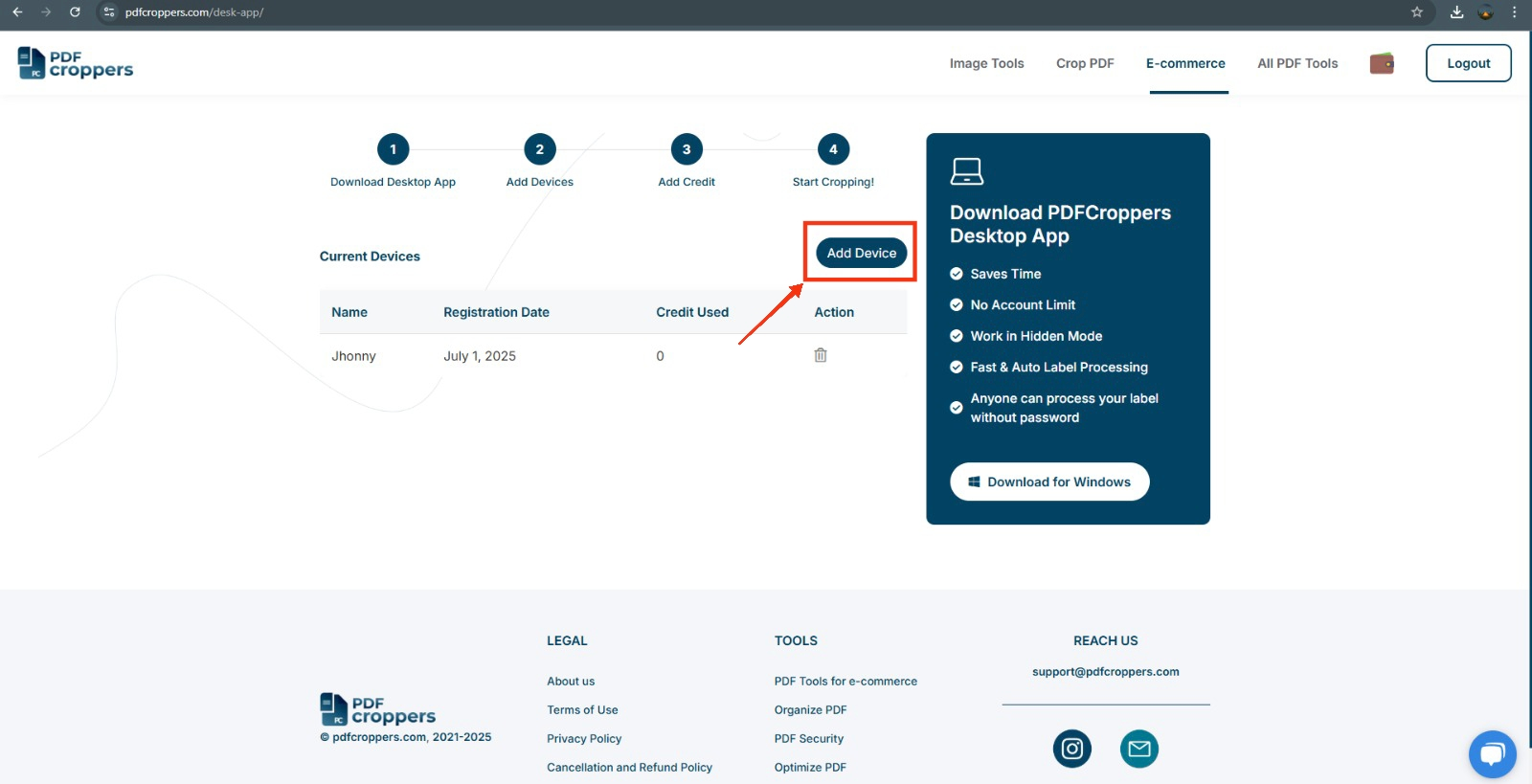
- Go to https://pdfcroppers.com/desk-app/ and click on "Add Device":
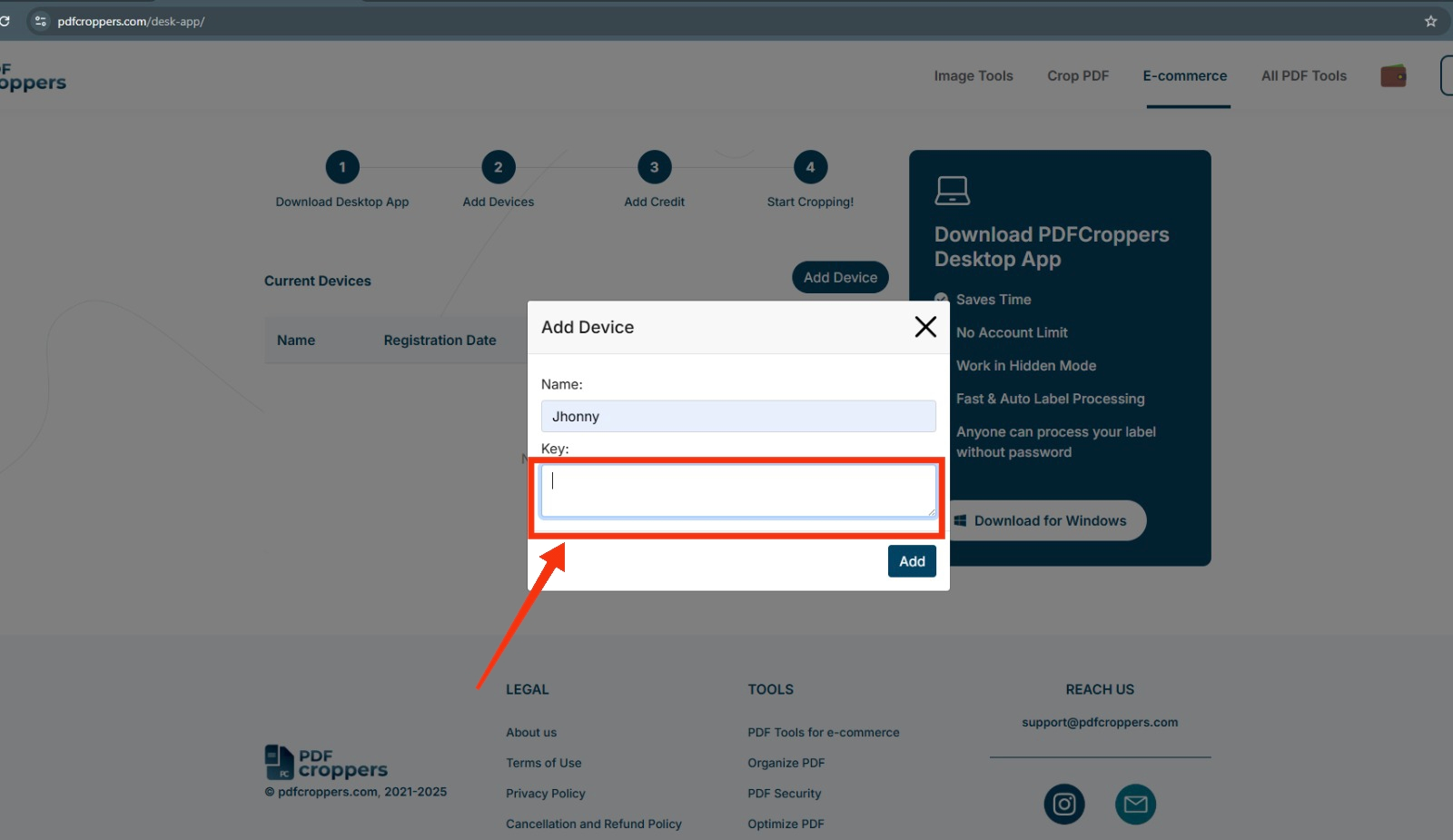
- Enter a device name and paste the copied key:
- Click "Add". Your device will be registered.
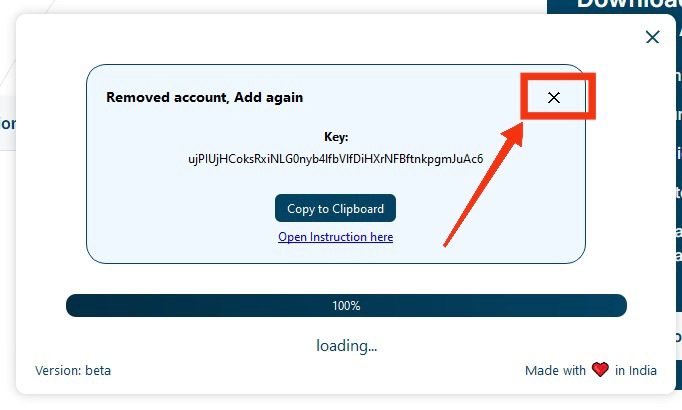
- Now close the app as shown:
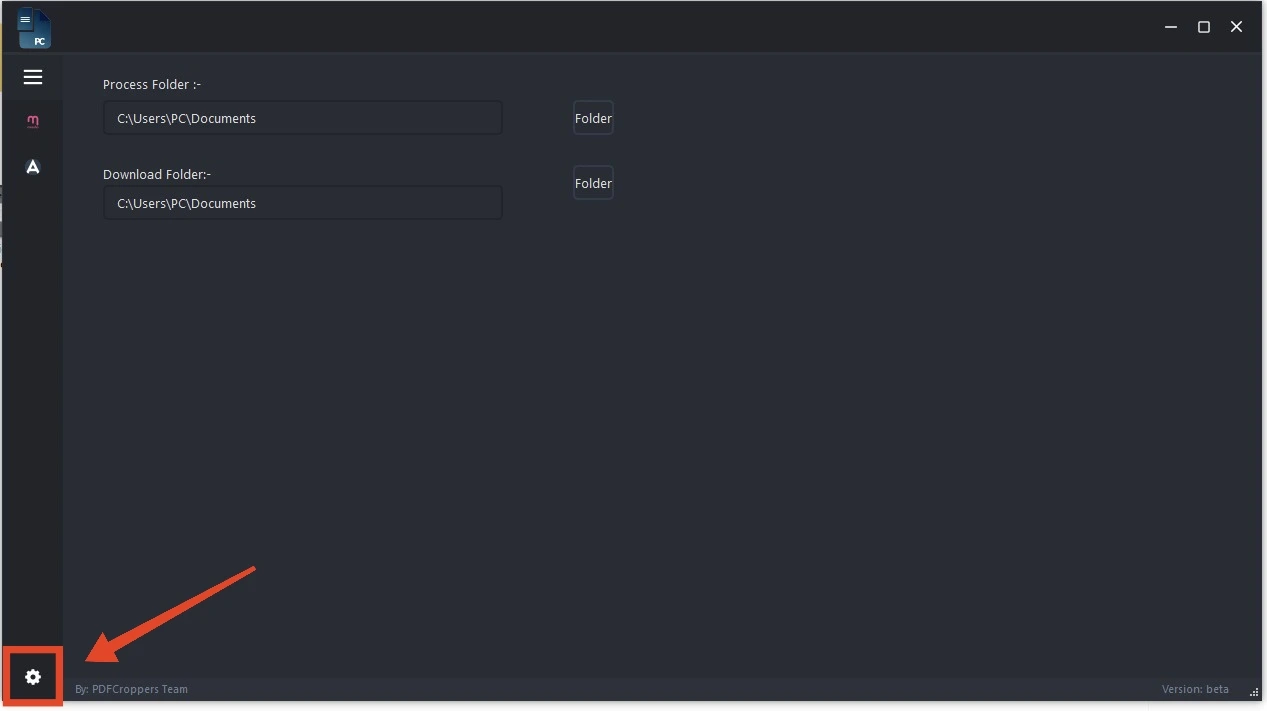
3. Folder Settings
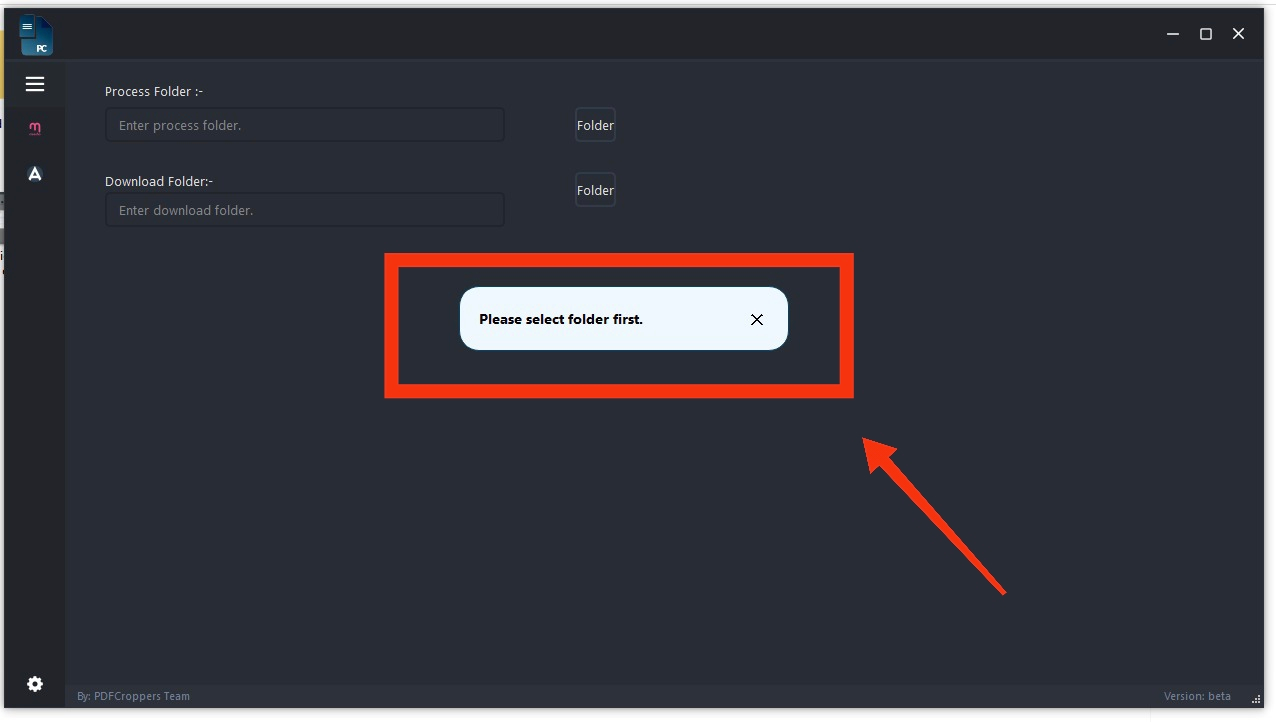
- Reopen the app. You'll see this prompt:
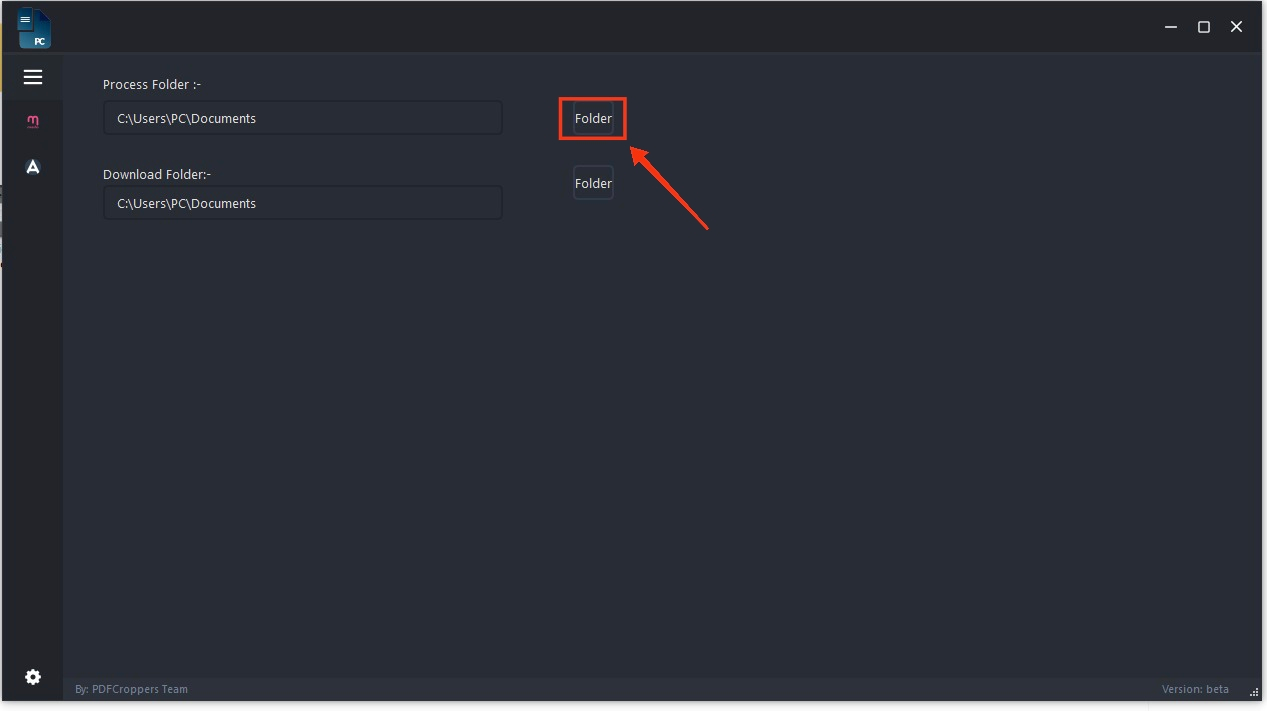
- Click the folder icon to select a path:
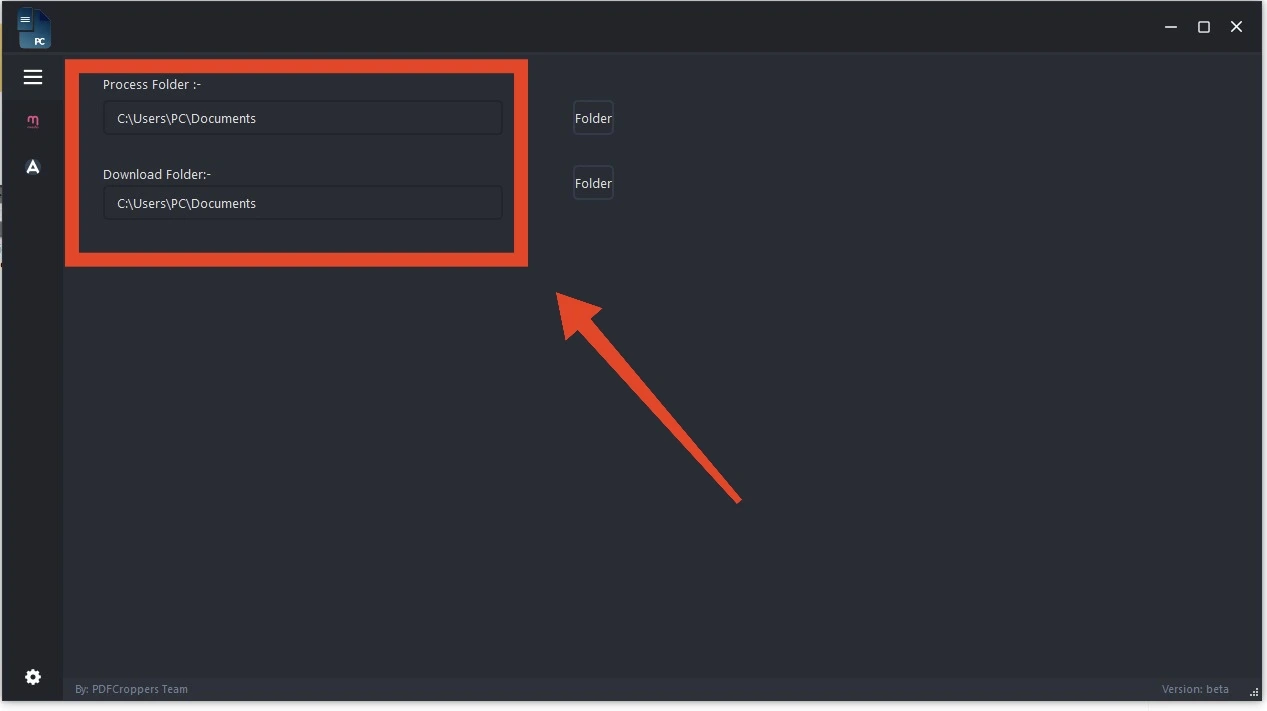
- Repeat for both the Process folder and the Download folder:
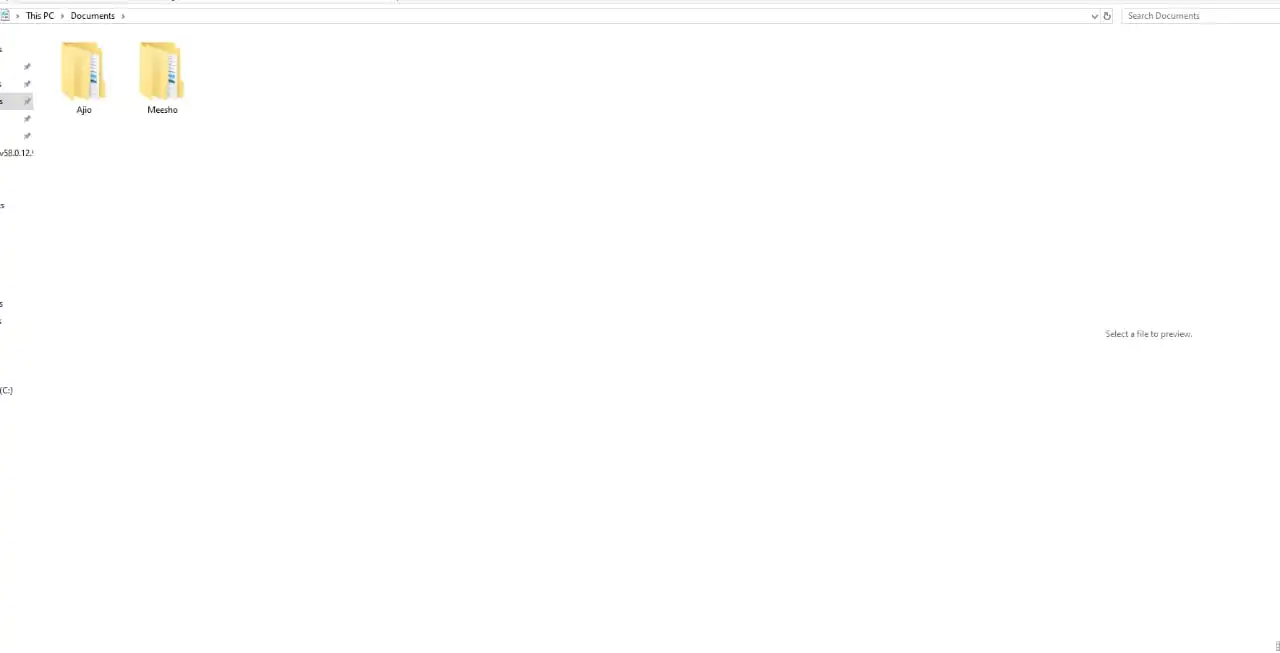
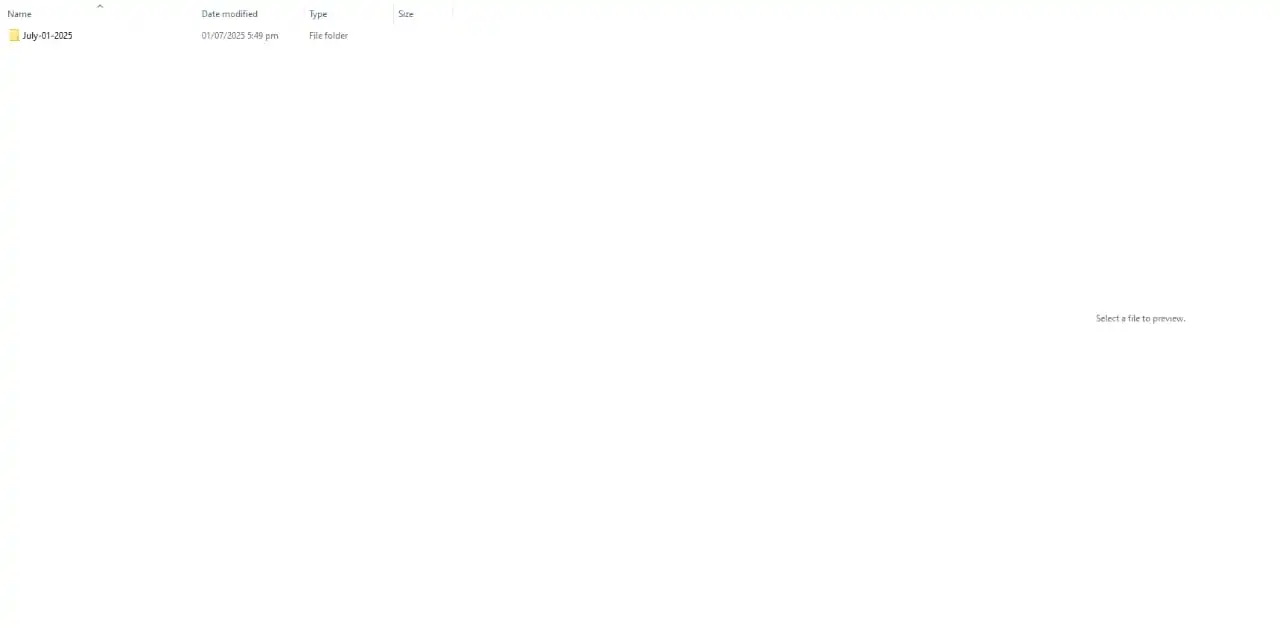
- This settings is for structurized your processed files as platform & datewise as shown in images
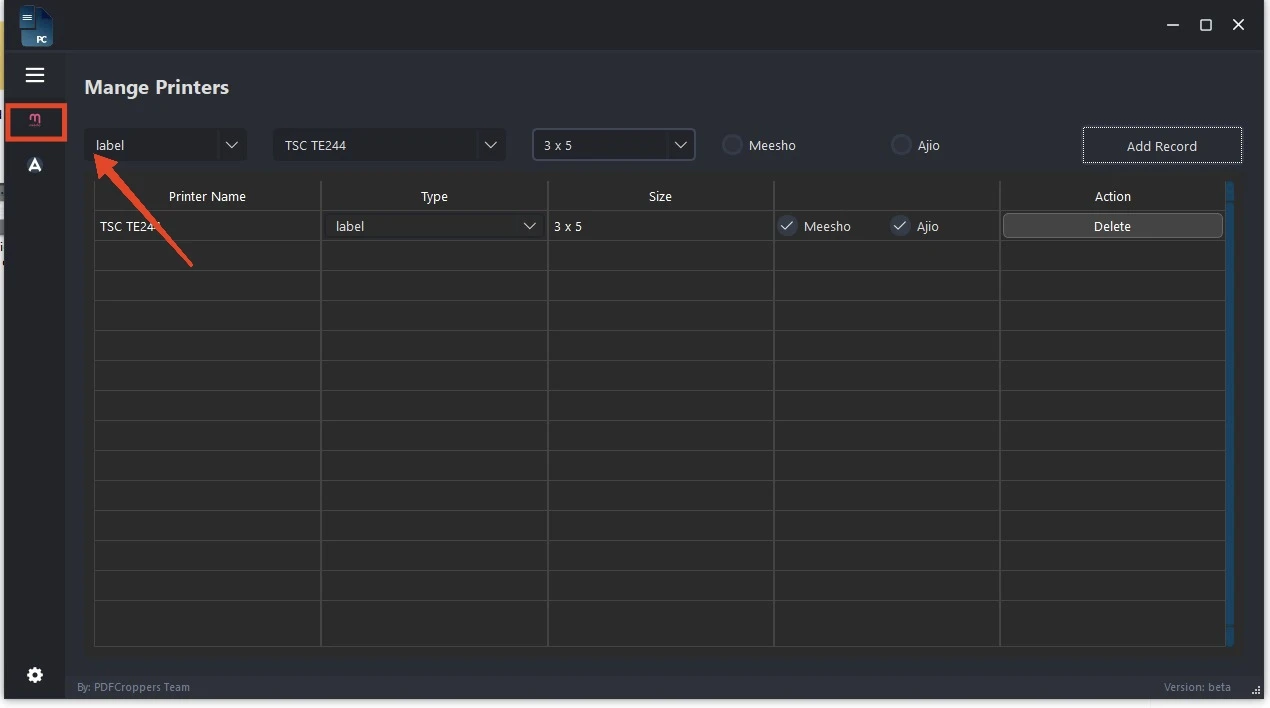
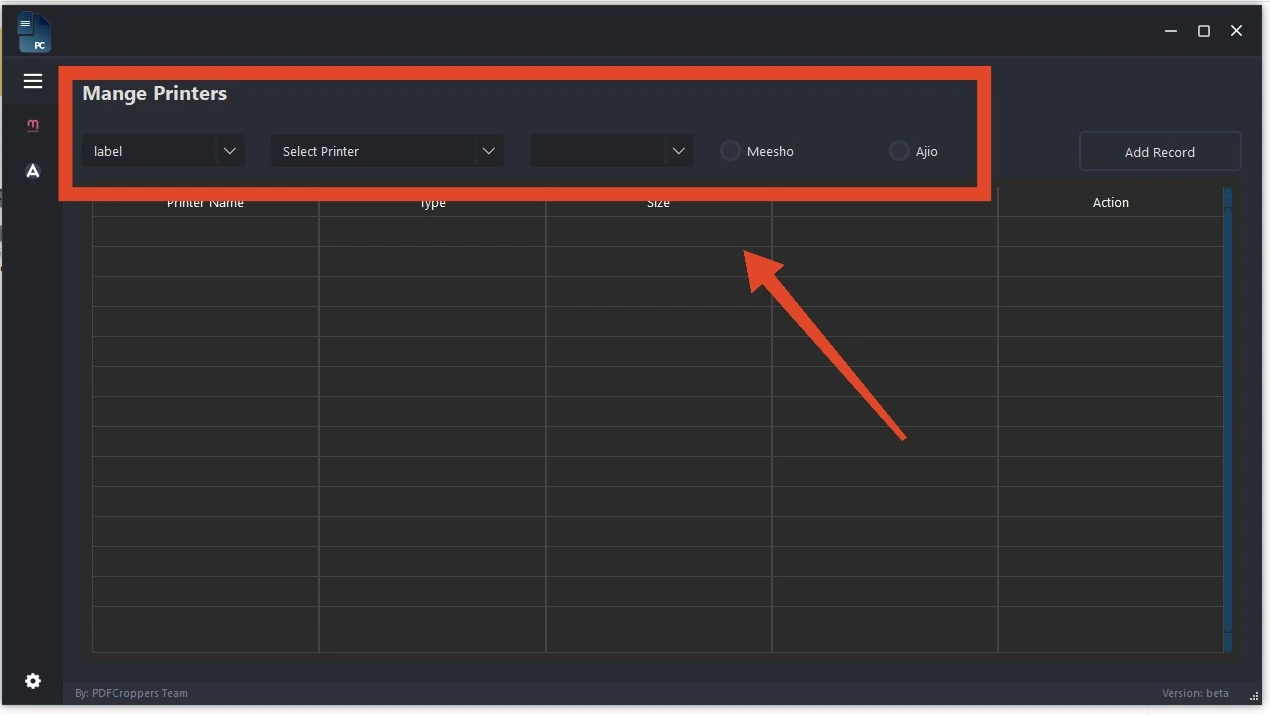
4. Printer Settings
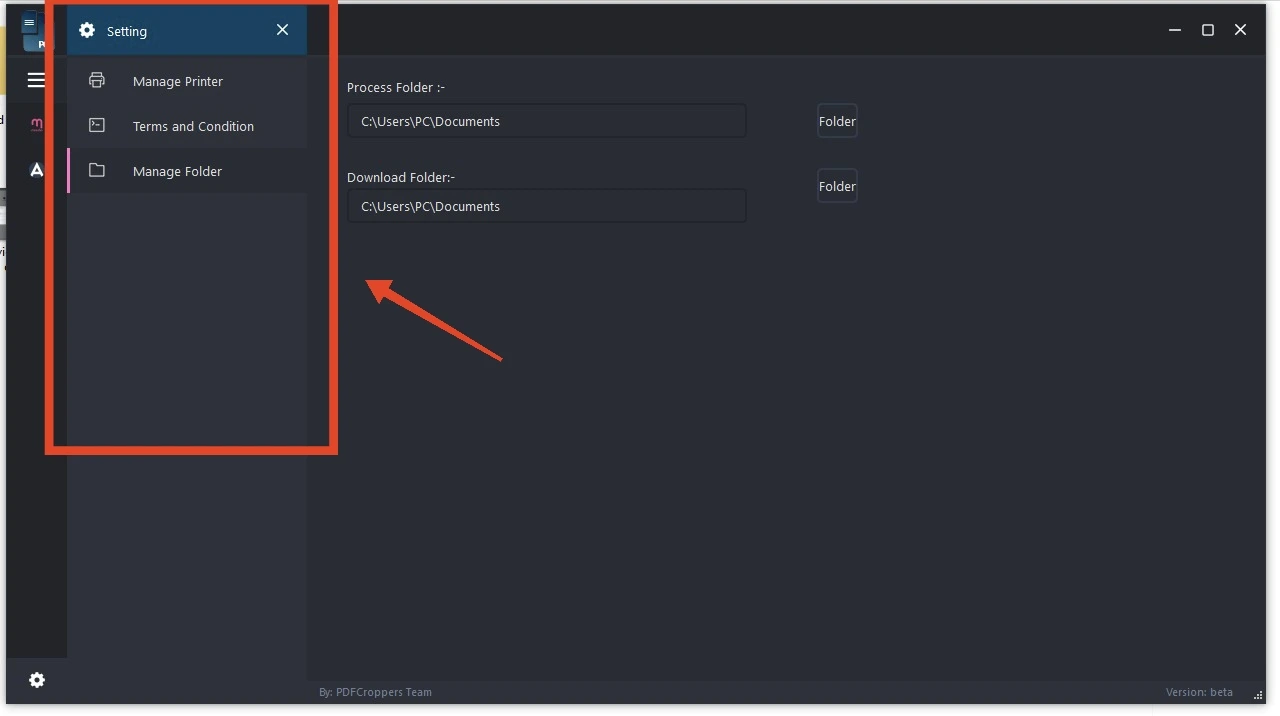
- Click the printer settings icon:
- You'll see the following screen:
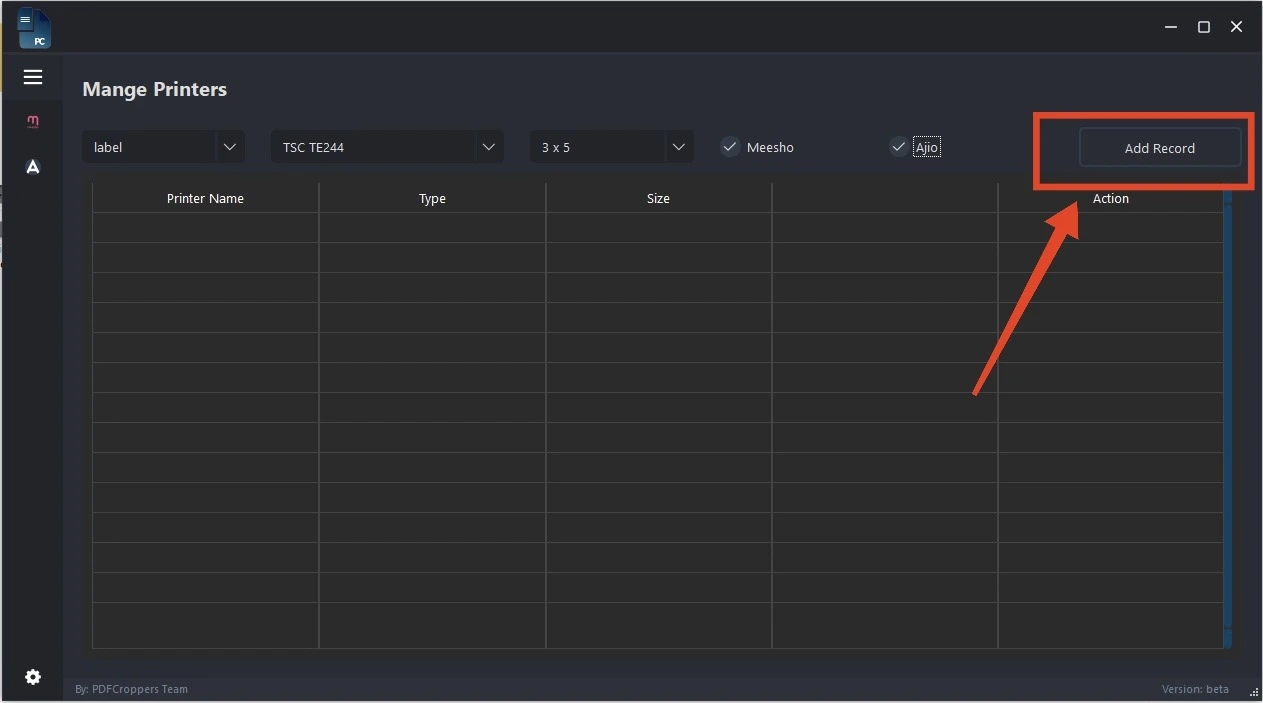
- Select a printer and page size:
- Click the "Add Record" button:
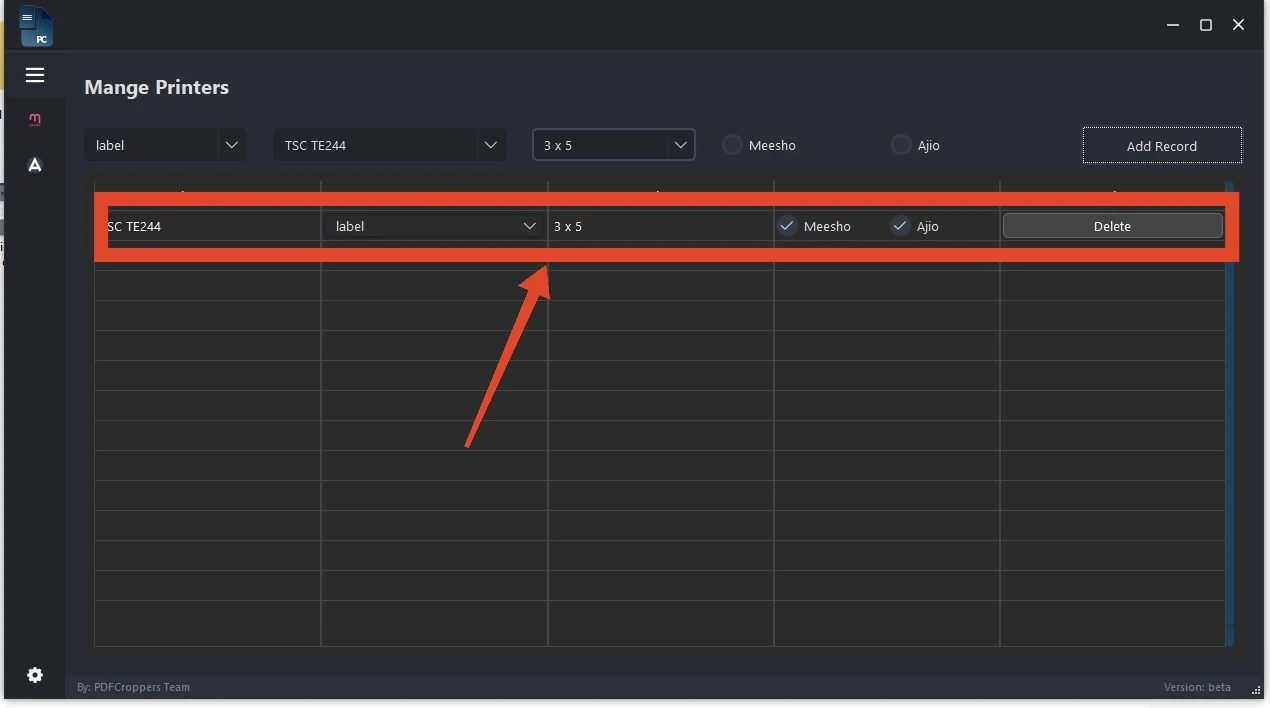
- You'll see your printer listed as shown:
- Click "Delete Printer" to remove a printer.
5. Process PDF Files
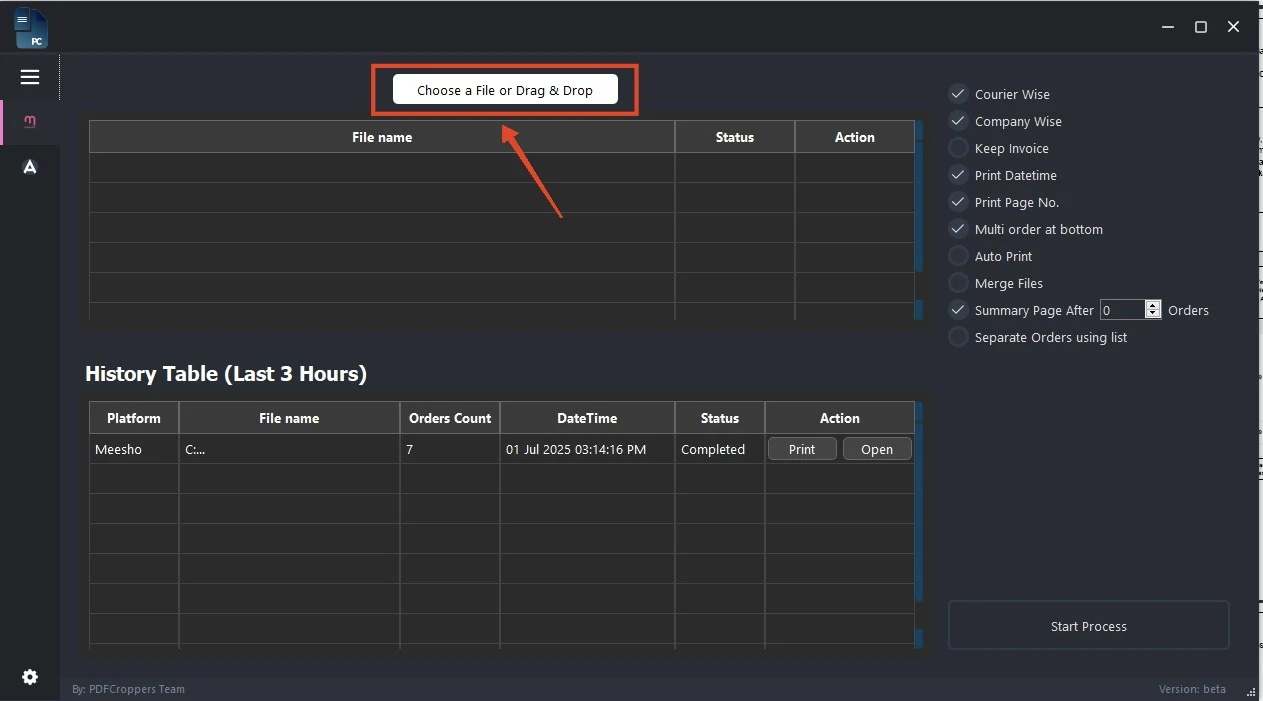
- Now you're ready to process files. Click the Meesho or Ajio icon to begin:
- Use the respective tabs and drag/drop or select files for processing:
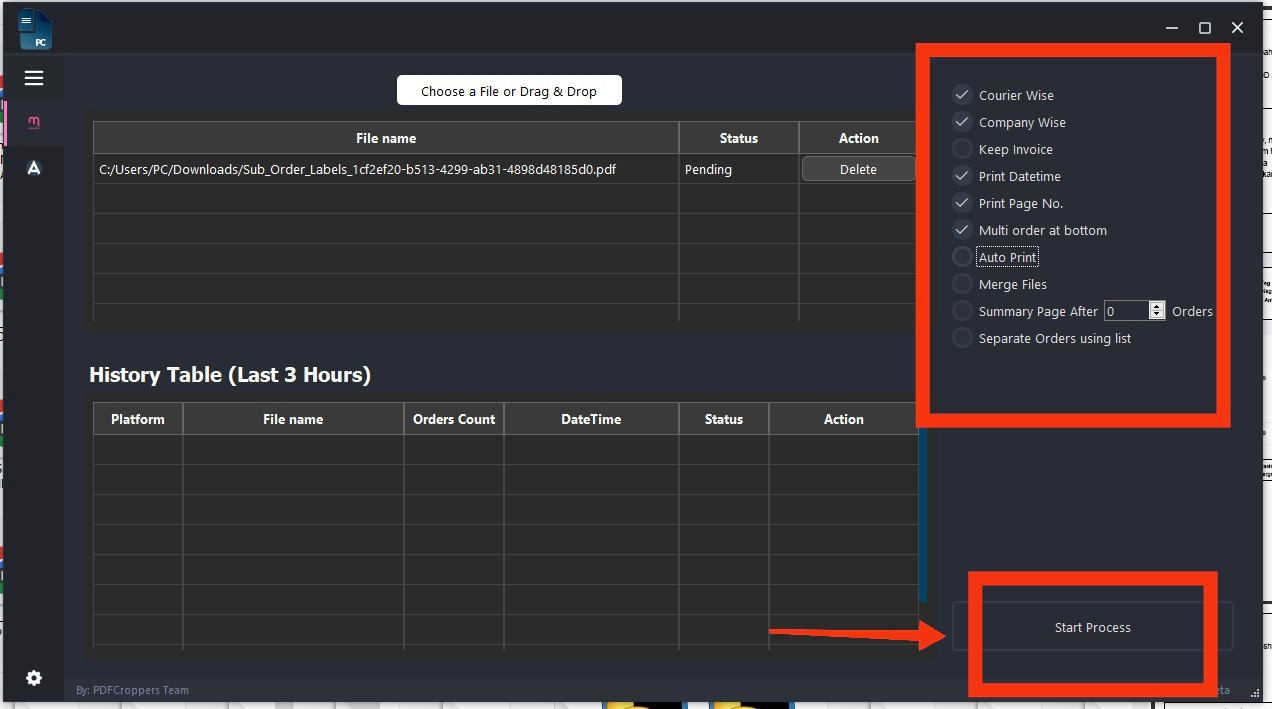
- Choose the correct settings and click "Start Process":
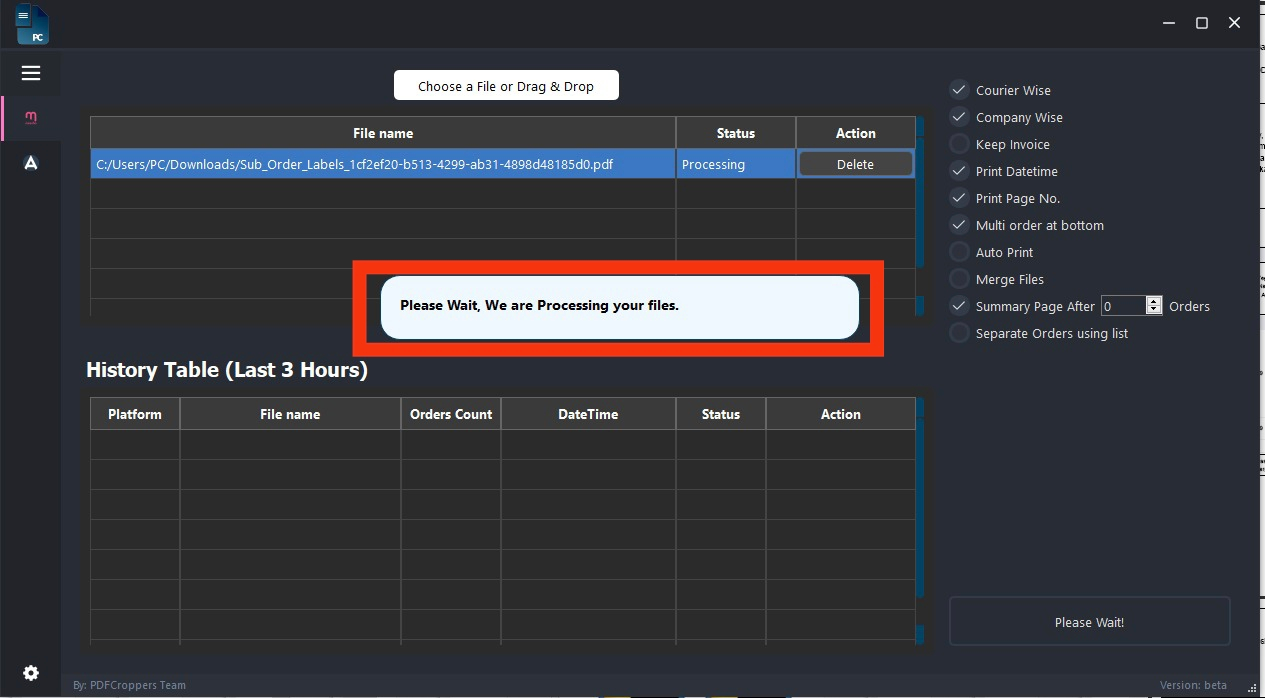
- Wait while files are being processed:
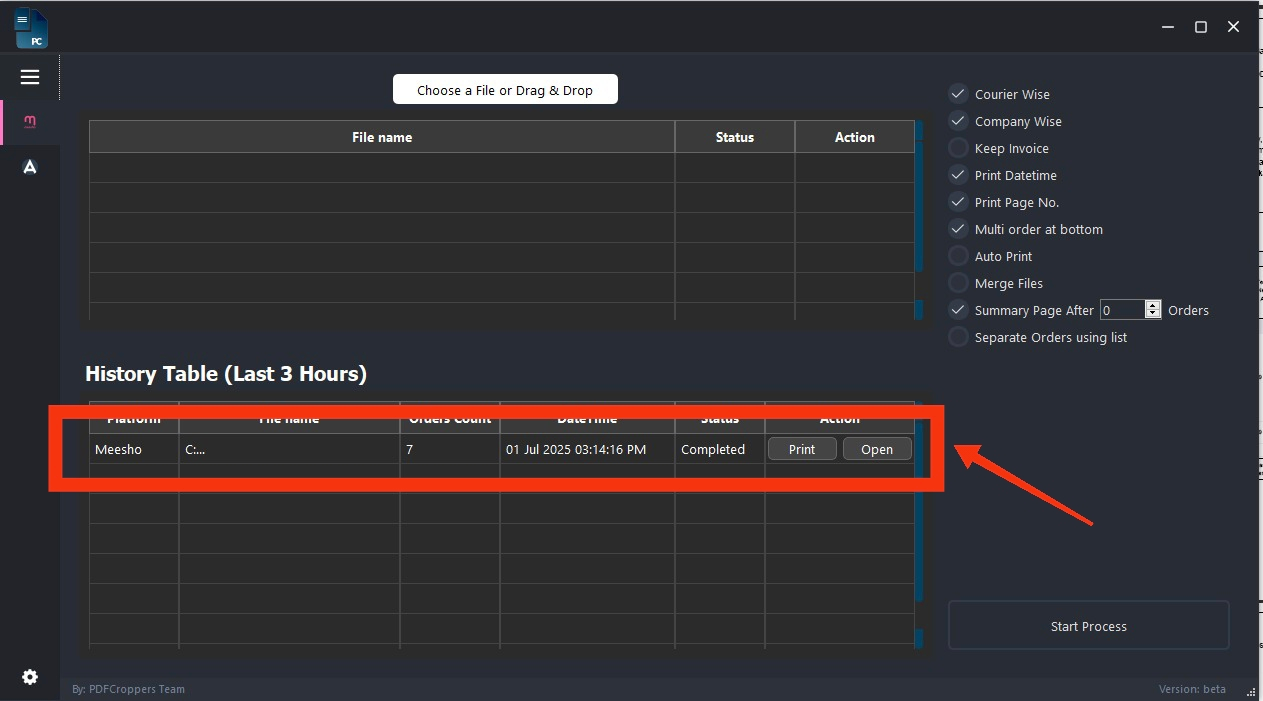
- After processing, files will appear in the history table:
- Click "Print" to print or "Open" to view the file.
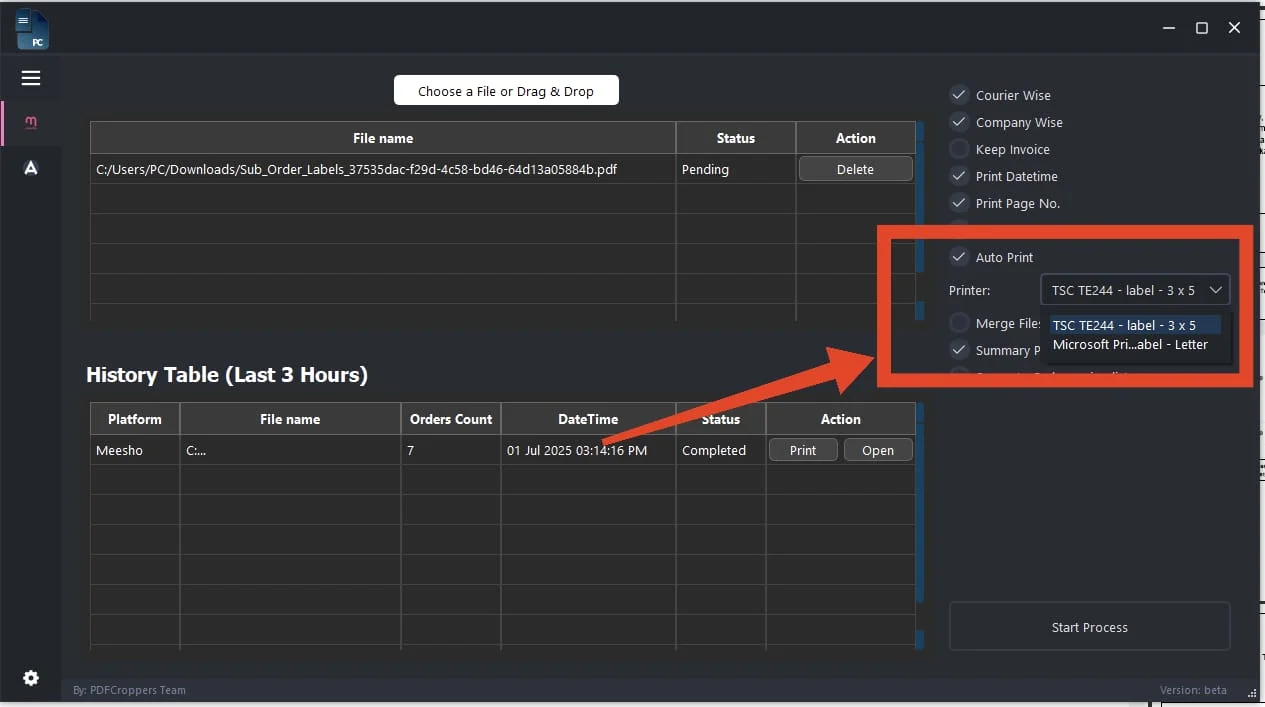
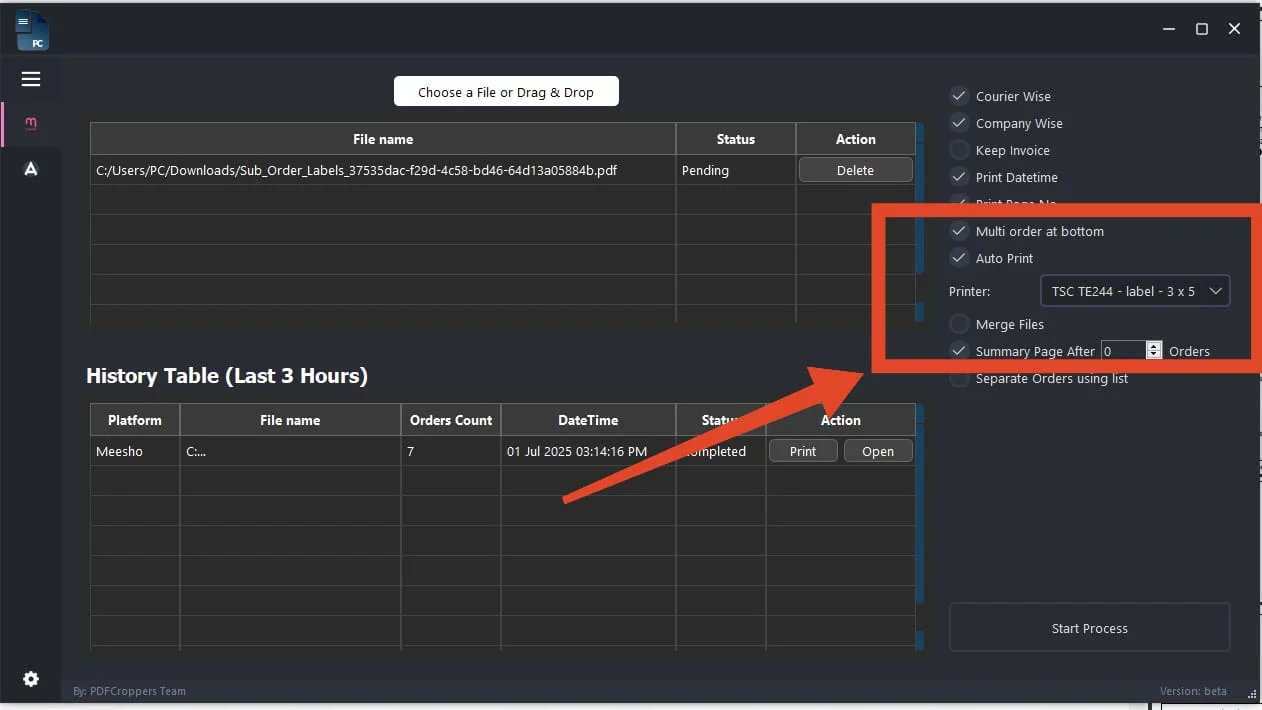
- if select auto print then first you have to select printer from dropdown as shown in image
- auto print will automatically print after completed processed files via selected printer